Themes
Switch between light, dark, and system modes, apply preset themes like Fantasy or Sci-Fi, or build custom themes with the visual theme builder.
Overview
Swashbuckler supports light, dark, and system color modes out of the box. You can also apply preset themes (Fantasy, Sci-Fi) that add decorative styling beyond just colors, or create fully custom themes with the theme builder — pick 8 core colors, choose a light or dark base, and see a live preview. Themes can be applied per-space, so each workspace can have its own look.
Preset Themes
Preset themes go beyond colors — they add decorative styling like textures, typography, and visual effects that transform the entire UI.
Fantasy
A parchment-and-ink aesthetic with warm golden tones, grain and fiber textures, medieval serif typography (Cinzel headings, Lora body text), embossed buttons, scroll-style dialogs, and ornamental borders. Includes both light (classic parchment) and dark (aged/burned parchment) variants.
{/* screenshot: Fantasy theme light mode showing parchment texture and medieval typography */}
Sci-Fi
A cyberpunk neon aesthetic with cool blue tones, grid patterns, monospace typography (Orbitron headings, Share Tech Mono body text), and glowing accents. Includes both light and dark variants.
Choosing a Theme
Go to Settings > Appearance to configure your theme. The page has two rows:
- Mode — Light, Dark, or System (follows your OS preference). Controls the base color scheme.
- Style — None, Fantasy, or Sci-Fi. Adds decorative styling on top of your chosen mode. Select "None" to use the plain default look.
Both rows work the same way — click the option you want. Mode and Style are independent, so you can combine any mode with any style (e.g. Dark + Fantasy, Light + Sci-Fi).
You can also cycle modes using the theme button in the app header (Sun → Moon → Monitor).
If a custom theme is active, the first click clears the custom theme and returns to the built-in mode cycle.
Custom Theme Builder
Create your own color themes in Settings > Custom Themes.
Creating a Theme
- Go to Settings > Custom Themes
- Click New Theme
- The theme builder opens with live preview
Core Colors
The builder lets you customize 8 core colors:
| Color | What It Controls |
|---|---|
| Background | Main page background |
| Foreground | Primary text color |
| Primary | Buttons, links, active states |
| Secondary | Secondary buttons, subtle backgrounds |
| Accent | Highlights, hover states |
| Muted | Disabled states, placeholder text, subtle borders |
| Destructive | Delete buttons, error states |
| Border | Lines, separators, input borders |
The remaining ~22 CSS variables (foreground variants, sidebar colors, chart colors, etc.) are auto-derived from your 8 core picks, so you don't need to configure every detail.
Base Selection
Each theme is either light-based or dark-based. Choose the base that matches your background color — this controls whether the app applies light or dark mode styling underneath your custom colors.
Live Preview
As you adjust colors, the preview updates in real time so you can see exactly how your theme will look before saving.
Saving
Give your theme a name and click Save. The theme is stored in your browser and available from the theme list.
Managing Themes
In Settings > Custom Themes, your custom themes appear in a grid. Each theme card shows:
- Color swatches previewing the theme's palette
- Edit — reopen the theme builder to adjust colors
- Delete — permanently remove the theme
Selecting a Theme Per Space
Custom themes are applied per-space — each workspace can have a different theme. When you switch spaces, the theme switches too.
To set a theme for a space:
- Go to Settings > Appearance (under Space settings)
- Choose a built-in mode or click Activate on a custom theme
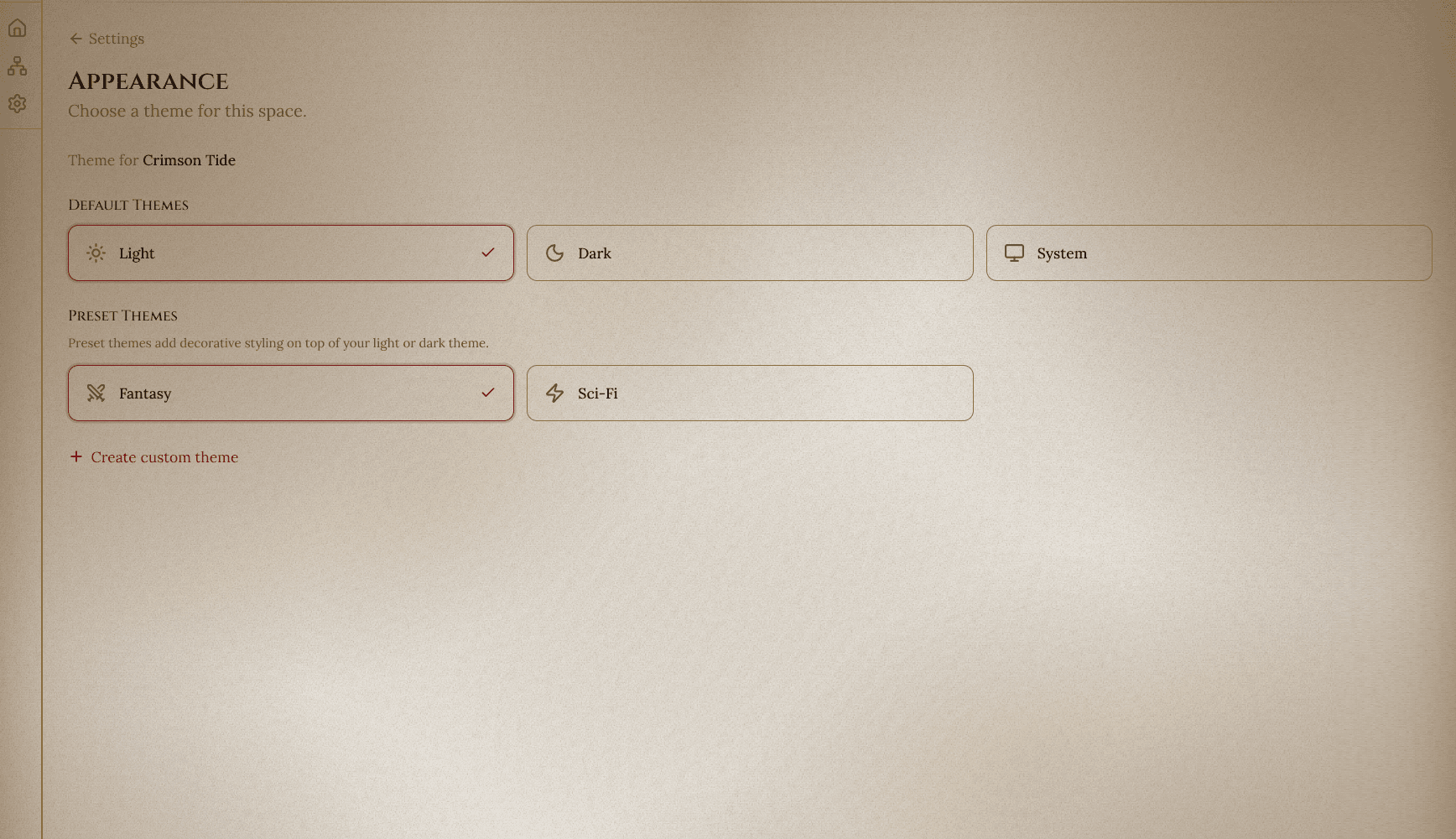
The Appearance page shows a live preview of each custom theme so you can see how it looks before activating. A link at the bottom takes you to Custom Themes if you need to create or edit themes.
Theme assignments are saved in your browser (via localStorage), so each user in a shared space sees their own preferred theme.
Shared Spaces
Theme preferences are personal — they're stored in your browser, not in the shared space data. Collaborators in the same space can each use different themes without affecting each other.
Resetting to Default
To go back to the built-in light/dark/system modes:
- Click the theme toggle button in the header (first click clears the custom theme)
- Or go to Settings > Appearance and select one of the built-in modes