Graph View
Visualize connections between entries with interactive force-directed, hierarchical, radial, and clustered layouts.
Overview
The graph view shows your entries as nodes and their connections (from mentions, links, and relations) as edges in an interactive visualization. It's accessible from the Graph link in the sidebar.
Use the graph to explore your knowledge structure, discover patterns, and navigate between related entries.
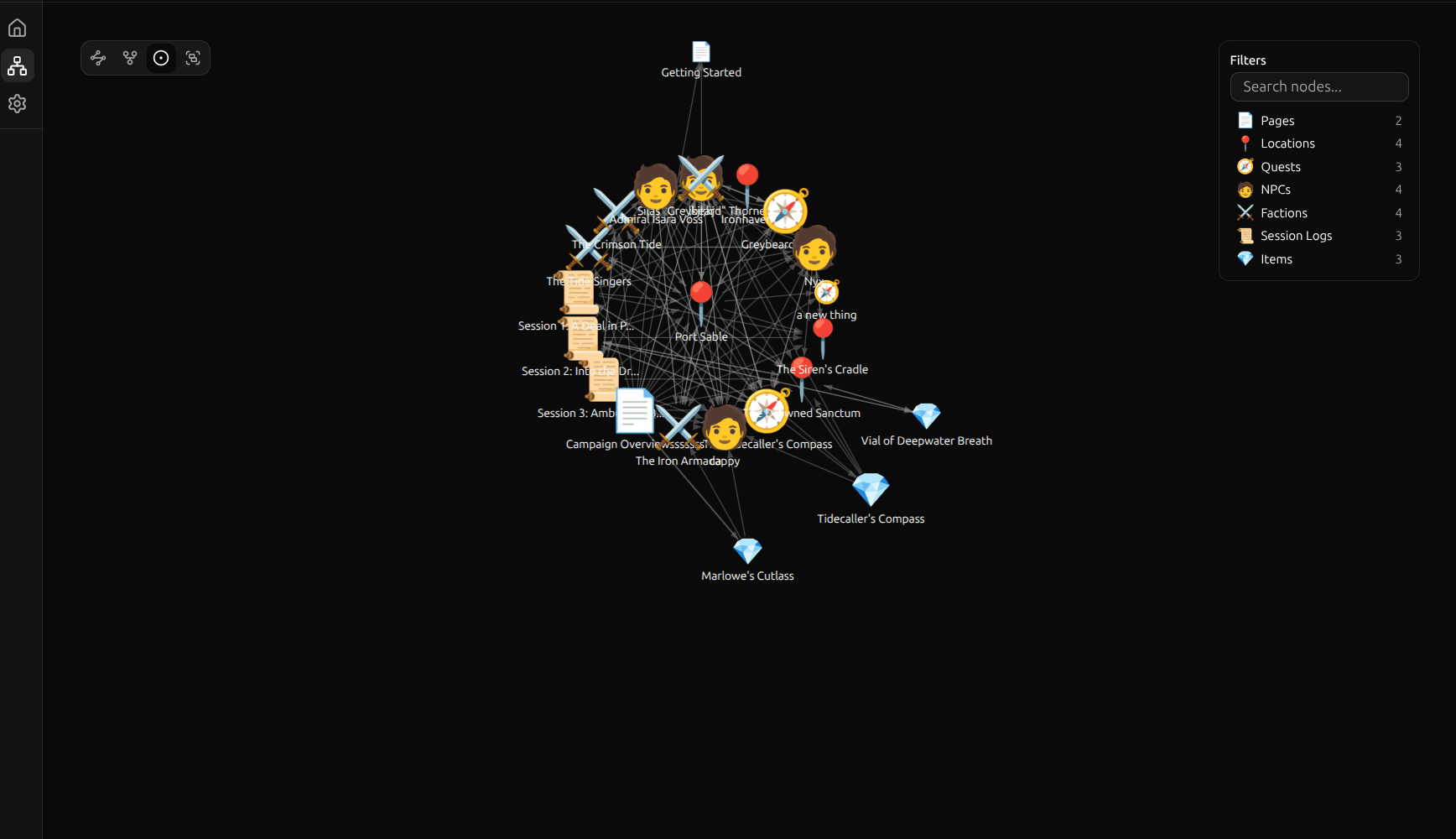
Layout Modes
Switch between four layout modes using the toggle in the top-left corner of the graph. Transitions between layouts are animated.
Force-Directed (Default)
Nodes are positioned by a physics simulation — connected nodes attract each other, and disconnected nodes repel. The graph settles into an organic layout where clusters of related entries naturally group together.
Drag any node to reposition it. The simulation reheats briefly to accommodate the change, then settles again.
Hierarchical
Entries are arranged in a top-down tree layout using a breadth-first spanning tree. This works well for content with clear parent-child relationships, like a project broken down into tasks.
Radial
The same tree structure as hierarchical, but projected onto concentric circles. The most connected entry sits at the center, with related entries radiating outward. Good for seeing how far content is from a central topic.
Clustered
Entries are grouped by template on an outer circle, with each template's entries arranged on smaller inner circles. This layout emphasizes template-based organization and makes it easy to see how entries of different templates connect.
Interactions
| Action | Effect |
|---|---|
| Click a node | Select it — dims other nodes and shows the detail panel |
| Double-click a node | Navigate to that entry in the editor |
| Drag a node | Reposition it — connected nodes and edges highlight during the drag (force-directed mode reheats the simulation) |
| Scroll / pinch | Zoom in and out |
| Click and drag the background | Pan the view |
| Escape | Deselect the current node |
Detail Panel
When you select a node, a detail panel appears showing:
- Entry title and icon
- Template name and color
- Connected entries (click to navigate)
On mobile, the detail panel appears as a full-width card at the bottom of the screen.
Template Filtering
The filter panel in the top-right corner shows all templates in your space with color swatches. Click a template to include or exclude it from the graph. This is an inclusion-based filter — only checked templates are shown.
Filtering updates the graph immediately. Edges connected to hidden nodes are also hidden.
Keyboard Navigation
The graph is fully keyboard-navigable:
| Key | Action |
|---|---|
| Arrow keys | Move focus to the nearest node in that direction (spatial cone-based) |
| Enter | Open the selected entry in the editor |
| Escape | Deselect the current node |
Focus changes and selections are announced to screen readers via aria-live regions.
Tips
- The graph only shows entries with at least one connection. Isolated entries (no mentions, links, or relations) don't appear.
- Use
@mentions in your entries to build connections organically as you write — mention NPCs in session logs, reference locations in character backstories, and the graph fills itself in. - Try the clustered layout to get a high-level view of how your templates relate to each other — see which Characters are tied to which Factions, or how Locations connect to plot threads.
- Double-click is the fastest way to navigate between related entries.