Template Pages
Dedicated pages for each template with table, list, card, and board views.
Overview
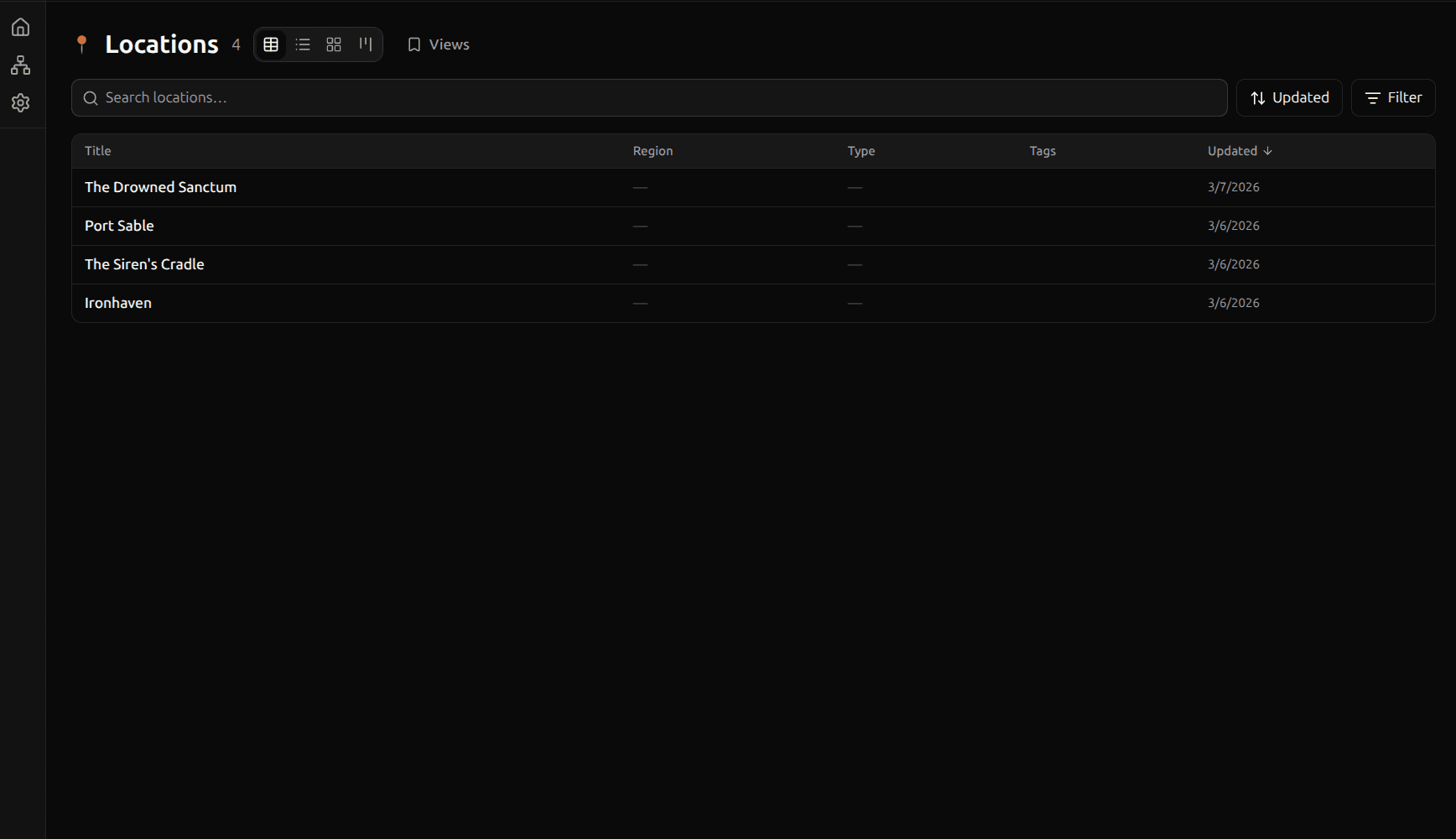
Every template in your space has a dedicated page that shows all entries using that template. Access it by clicking the template name in the sidebar. Template pages support four view modes — Table, List, Card, and Board — so you can work with your entries in the layout that fits best.
View Modes
Switch between views using the segmented control at the top of the template page. Your choice is saved per template and persists across sessions.
Table View
A spreadsheet-style grid with sortable columns. The table shows the entry title plus a column for each property defined on the template, and an "Updated" timestamp column.
- Click any row to open the entry in the editor
- Click a column header to sort by that column (see Filtering & Sorting)
- The table uses semantic HTML (
<table>,<th>,<caption>) for accessibility
List View
A compact vertical list showing each entry's icon, title, a content preview (first ~80 characters of the body), and the last updated date.
Card View
A visual grid of entry cards. Each card shows:
- Cover image (if set)
- Entry icon and title
- Content preview (first ~2 lines)
- Updated date
Cards arrange in a responsive grid — 1 column on narrow screens, up to 3 columns on wider screens.
Board View
A kanban-style board that groups entries by a select property. See Board View for full details.
Title Search
A search bar at the top of the template page filters entries by title (case-insensitive substring match). Press Escape to clear the search. The header shows a count like "5 of 12 Tasks" when a filter is active.
Filtering and Sorting
Template pages support powerful filtering and sorting across all view modes. See Filtering & Sorting for complete details.
Multi-Select & Bulk Actions
Select multiple entries to perform bulk operations across all view modes (except board).
Selecting entries
- Hold Cmd (Mac) or Ctrl (Windows) and click entries to toggle individual selections
- Hold Shift and click to select a range
- In table view, use the checkbox column — the header checkbox selects or deselects all entries
- In list view, each row has a checkbox on the left
- In card view, a checkbox appears in the top-left corner on hover (always visible when any entries are selected)
Selected entries are highlighted. A floating action bar appears at the bottom of the page with:
- Select all / Deselect all
- Move — reassign entries to a different template
- Tag — add or remove tags from selected entries
- Archive — archive selected entries (with confirmation)
- Delete — move selected entries to trash (with confirmation)
Selection clears automatically when you navigate away, change filters, sort, or switch view modes. You can also press Escape to clear the selection.
Right-Click Actions
Right-click any entry in table, list, card, or board view to open a context menu with:
- Pin / Unpin — toggle the entry in your dashboard's Pinned section
- Archive — move the entry to the archive
- Move to trash — soft-delete the entry (recoverable from Trash)
Manual Reordering
In table and list views, you can manually reorder entries by selecting Manual from the sort dropdown. When Manual sort is active, a drag handle appears on each row. Drag entries up or down to rearrange them. The custom order is saved and persists across sessions. Manual reordering is disabled when entries are selected.
In the sidebar, space owners can also drag entries within each template group to reorder them. This order is shared with the Manual sort on template pages.