Editor
A full block editor with slash commands, inline formatting, tables, code blocks, images, and auto-save.
Overview
Swashbuckler's editor is a rich block editor built for flexible writing. It supports slash commands for inserting blocks, a floating toolbar for inline formatting, drag-and-drop reordering, content tabs, tables with hover menus, syntax-highlighted code blocks, and images. Your work saves automatically.
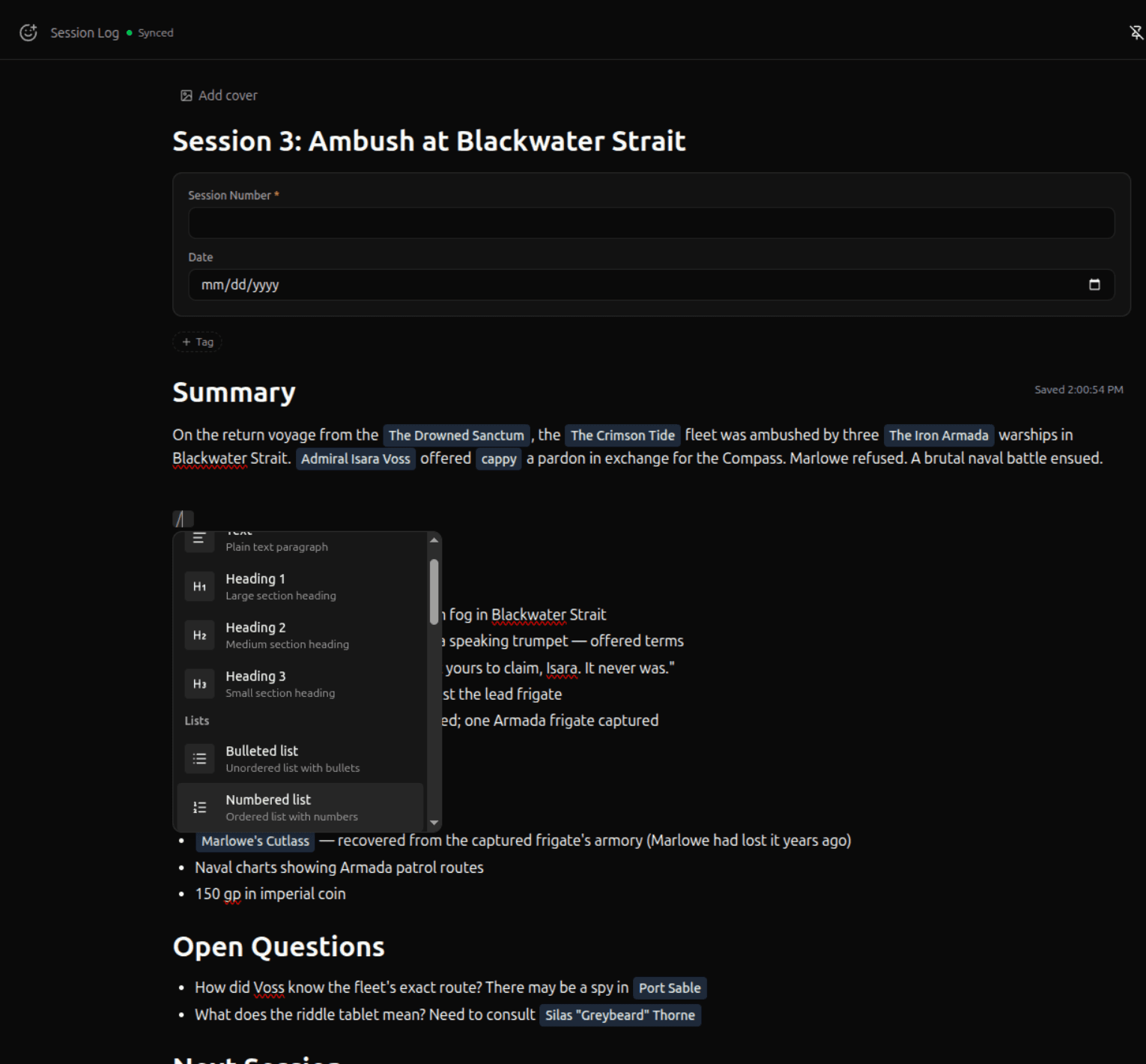
Slash Menu
Type / anywhere in the editor to open the slash menu. It shows all available block types, organized by category. Start typing to filter — for example, /head narrows to heading options.
Block Types
| Block | Description |
|---|---|
| Paragraph | Default text block |
| Heading 1 | Large section heading |
| Heading 2 | Medium section heading |
| Heading 3 | Small section heading |
| Blockquote | Indented quote block |
| Callout | Highlighted box with variants — info, warning, danger |
| Bullet List | Unordered list (also start a line with - or *) |
| Numbered List | Ordered list (also start a line with 1.) |
| Toggle List | Collapsible list with expand/collapse |
| Code Block | Syntax-highlighted code (see below) |
| Table | Grid with rows and columns (see below) |
| Table of Contents | Auto-generated outline of headings in the entry |
| Image | Upload or embed an image (see below) |
| Link Embed | Rich preview card for a URL |
| Columns | Side-by-side column layout with drag-to-resize (see Columns below) |
| Mention | Reference another entry (see Relations & Linking) |
| Secret | Owner-only content block (see Secret Content) |
| Backlinks | Shows entries that link to or mention this entry (see Relations & Linking) |
| Progress Bar | Rectangular segment tracker (see Progress Trackers below) |
| Progress Circles | Circular dot tracker (see Progress Trackers below) |
| Progress Clock | Pie wedge countdown tracker (see Progress Trackers below) |
| Stat | Labeled number field for character sheets (see Character Sheet Blocks below) |
| Stat Block | Number with modifier display (see Character Sheet Blocks below) |
| Resource | Current/max tracker (see Character Sheet Blocks below) |
| Text Field | Labeled text area (see Character Sheet Blocks below) |
| Dice Roll | Dice macro button (see Character Sheet Blocks below) |
| Section | Sheet section divider (see Character Sheet Blocks below) |
| Dropdown | Interactive dropdown selector with inline or lookup-based options (see Character Sheet Blocks below) |
| Conditional Content | Show or hide content based on a dropdown's selected value — for branching decision trees |
| Divider | Horizontal rule separator (also type --- on an empty line) |
| Canvas Embed | Embed a read-only canvas from another entry — pick a canvas tab, then pan and zoom the preview inline |
Columns
Insert a column layout from the slash menu (/columns). This creates a two-column side-by-side layout.
- Resize — drag the handle between columns to adjust widths
- Add column — hover over the layout and click the + button on the right edge (up to 6 columns)
- Remove column — hover over a column and click the x button in its top-right corner; its content moves to the adjacent column
- Mobile — columns stack vertically on small screens
{/* screenshot: Column layout with resize handle between two columns */}
Character Sheet Blocks
Insert interactive TTRPG character sheet elements from the slash menu under the Sheet category. These blocks let you build structured character sheets with computed fields — no spreadsheet needed.
| Block | Slash command | Description |
|---|---|---|
| Stat | /stat | Labeled number field — enter a value manually, or attach a formula to compute it |
| Stat Block | /stat block | Number with a derived modifier display below — click the modifier to roll 1d20+mod |
| Resource | /resource | Current / max tracker with +/- buttons (HP, spell slots, ki points) |
| Text Field | /text field | Labeled multiline text area (character name, backstory, notes) |
| Dice Roll | /dice roll | Dice macro button with notation like 1d20 + \{STR_MOD\} |
| Section | /section | Styled section divider for organizing the sheet into groups |
| Dropdown | /dropdown | Interactive selector — define options inline or source them from a lookup tab |
Dropdown & Conditional Content
Dropdown blocks let you create interactive selectors. Define options inline via the settings popover, or point them at a lookup tab for dynamic options. Dropdown values are available in formulas as string variables (e.g., a "Race" dropdown with "Elf" selected becomes RACE = "Elf" for use with vlookup()).
Conditional Content blocks (/conditional) show or hide their contents based on a dropdown's selected value. Use them to build branching decision trees — for example, a character creation guide where choosing "Elf" reveals elf-specific content and a "Subrace" dropdown.
To scaffold branches quickly: open the dropdown's settings popover and click "Add branch for each option" — this inserts one conditional group per option, each pre-linked and pre-assigned.
In edit mode, inactive branches are dimmed so you can see and edit all paths. In view mode, only the matching branch is visible.
Formulas
Sheet blocks with number values can optionally use formulas to compute their value from other fields on the same page. Click the fx icon that appears on hover to open the formula editor.
Formulas reference other blocks by their label name. Examples:
- Ability modifier:
floor((STR - 10) / 2) - Proficiency bonus:
floor((Level - 1) / 4) + 2 - Spell save DC:
8 + Proficiency + WIS_MOD
Supported: arithmetic (+, -, *, /), parentheses, comparison operators, floor(), ceil(), round(), min(), max(), abs(), and if() conditionals.
Formulas can also reference entry fields — if your entry type has a number field called "Strength", you can use STRENGTH in any formula. When a stat's formula is a simple field reference (just STRENGTH, no math), the binding is two-way: editing the stat updates the field, and editing the field updates the stat.
Formula-driven values show a subtle fx badge. Errors display as colored badges you can hover for details: #REF! for unknown fields, #CIRC! for circular references, #DIV0! for division by zero, #SYNTAX! for formula typos. The formula editor also shows a "how to fix" hint when there's an error.
Dice Rolling
Dice Roll blocks and Stat Block modifiers support real dice rolling powered by the same dice engine as the chat dice roller.
- Dice Roll blocks — click the Roll button to evaluate the notation, resolve any
\{LABEL\}references from other fields on the page, and display the result inline (total + breakdown) - Stat Block modifiers — click the modifier pill (shows a dice icon) to roll
1d20 + modifier. The result appears as a brief badge that clears after a few seconds
When you're in a shared space, dice rolls automatically post to the space's chat channel as structured dice messages — visible to all members. In local or guest mode, results are inline only.
D&D 5e Starter Template
Import the Roleplaying starter kit to get a pre-built D&D 5e Character type. New entries of this type come loaded with a full character sheet: six ability scores with auto-computed modifiers, combat stats (AC, initiative, speed, proficiency), HP tracker, saving throws, all 18 skills as rollable dice macros, and notes sections.
Inline Formatting
Select text to reveal the floating formatting toolbar. You can also use keyboard shortcuts:
| Format | Shortcut | Description |
|---|---|---|
| Bold | Cmd+B | Bold text |
| Italic | Cmd+I | Italic text |
| Code | Cmd+E | Inline code |
| Link | Cmd+K | Hyperlink |
| Underline | Cmd+U | Underlined text |
| Strikethrough | Cmd+Shift+S | Strikethrough text |
| Highlight | Cmd+Shift+H | Highlighted text |
| Spoiler | — | Click-to-reveal hidden text |
| Secret | Cmd+Shift+P | Owner-only inline text (see Secret Content) |
Images
Insert images in three ways:
- Slash menu — type
/imageand select Image - Paste — paste an image from your clipboard directly into the editor
- Drag and drop — drag an image file onto the editor
Uploaded images have a 3 MB size limit and support JPEG, PNG, GIF, WebP, and SVG formats. Hover over an image to see a toolbar with Replace and Delete actions.
Guest users can embed images by URL only (no file upload).
Tables
Insert a table from the slash menu (/table). Tables support:
- Hover menus — hover over the left edge of a row or the top edge of a column to see a handle. Click it to open a dropdown with:
- Insert row above / below
- Insert column left / right
- Color — set the background and text color for the whole row or column. Choose from preset swatches, enter a custom hex value, or use the color wheel; recently used colors are remembered across sessions
- Delete row / column
- Delete table
- Column resize — drag the border between columns to adjust widths. A blue indicator line appears on hover. Minimum column width is 48px.
- Tab navigation — press Tab to move between cells
Table colors persist with the document and render for everyone who can view it, including in shared spaces.
Code Blocks
Insert a code block from the slash menu (/code). Code blocks support syntax highlighting for:
JavaScript, TypeScript, HTML, CSS, JSON, Python, SQL, Go, and Rust.
Select the language from the dropdown in the top-right corner of the code block.
Progress Trackers
Insert visual segment-based counters from the slash menu — useful for tracking HP, spell slots, countdown clocks, inventory, or any other countable resource.
| Tracker | Slash command | Description |
|---|---|---|
| Progress Bar | /progress bar | Row of rectangular segments |
| Progress Circles | /progress circles | Row of circular dots |
| Progress Clock | /progress clock | SVG pie chart with wedge segments |
Interaction
- Fill segments — click any empty segment to fill up to that point
- Unfill segments — click a filled segment to unfill from that point (clicking the last filled segment removes one; clicking an earlier filled segment unfills everything after it)
- Edit label — click the label text above the tracker to rename it
- Change segment count — hover over the tracker to reveal +/- buttons next to the count display
The progress bar and circles default to 10 segments (range: 1–1000). The clock defaults to 6 segments (range: 1–24). When you reduce the segment count, filled segments are automatically clamped to the new total.
Formulas on Trackers
Give your tracker a label, then hover to reveal the fx button. Click it to set a formula for the max segment count — for example, set an HP bar's max to CON to pull from a stat block. The filled value stays manual (click to fill/unfill), but the total is formula-driven. When a formula is active, the +/- buttons are hidden since the max is computed.
Trackers also emit their values as formula variables: HP (filled count) and HP_MAX (segment count), so other blocks can reference them.
Content Tabs
Split an entry's content into multiple named tabs — useful for organizing different aspects of a topic (e.g., "Description", "Stats", "Notes") within a single entry.
Adding Tabs
Hover above the editor to reveal a + Tab button on the right side. Click it to convert the entry into tab mode — your existing content moves into a "Main" tab automatically.
Once in tab mode, use the + button in the tab bar to add more tabs.
Managing Tabs
- Rename — double-click a tab name to edit it inline
- Reorder — drag a tab to a new position, or press Ctrl+Shift+Arrow (Cmd+Shift+Arrow on Mac) to move the focused tab left or right
- Delete — click the grip icon on a tab and select Delete (you can't delete the last remaining tab)
- Secret tabs — mark a tab as secret from the grip menu so only you can see it. Secret tabs show a lock icon and dashed purple border. Shared users won't see secret tabs at all.
Collaboration
Each tab has its own independent editor — when collaborating in a shared space, multiple people can work on different tabs simultaneously without interfering with each other.
Auto-Save
Your work saves automatically — there's no save button. In solo mode, the editor saves 1 second after you stop typing. During real-time collaboration, saves happen every 3 seconds and are coordinated by a leader election system.
A status indicator in the entry header shows the current save state. If you close the browser tab with unsaved changes, you'll see a confirmation prompt.
Editor Width
Toggle between wide and slim editor layouts from the More Options menu (three-dot icon) in the editor header. Wide mode uses the full available width; slim mode constrains the editor to a comfortable reading width (~1024px). Your preference is saved per-user and syncs across tabs.
Side Panel
Open a secondary editor panel on the right side of the entry by clicking the panel icon in the editor header. The side panel is a lightweight note-taking area stored separately from the main entry content — useful for scratch notes, references, or commentary that you don't want in the main body.
- Content saves automatically (same auto-save behavior as the main editor)
- Works with real-time collaboration
- Panel open/closed state persists across sessions
Collapsible Property Fields
Click the Fields header above the property section to collapse or expand it. The collapsed state persists in localStorage, so your preference carries across sessions. The header shows a field count (e.g., "Fields (5)") so you know how many properties exist even when collapsed.
Editor Menu
The More Options menu (three-dot icon) in the editor header consolidates all entry-level actions in one place:
- Wide layout — toggle between slim and wide editor width
- Pinned — pin or unpin the entry for quick sidebar access
- Template variables — enable variable insertion mode (for template editing)
- Add cover / Remove cover — upload or remove the entry's cover image (cover images are opt-in, not shown by default)
- Properties — open tags, links, and custom fields in a popover (canvas tabs only)
- Save as Template — create a new template from this entry
- Switch To Template — apply a different template
- Archive — move the entry to the archive
- Move to Trash — delete the entry
Block Colors
Apply background and text colors to any block. Hover over a block and click the ... menu in the left gutter, then open the Color submenu. Choose from preset swatches, enter a custom hex value, or use the color wheel.
For column layouts, place your cursor in a column and open the gutter menu — you'll see both Color (for the entire row) and Column Color (for the specific column your cursor is in). This lets you color-code sections of a character sheet — for example, red for combat stats and purple for magic.
Divider blocks use the background color to tint the line itself.
Recently used colors are remembered across sessions so your palette stays handy.
Drag and Drop
Hover over any block to see a drag handle on the left side. Grab it to reorder blocks within the entry. You can drag headings, paragraphs, lists, images, tables, and any other block type.
Keyboard Navigation
The editor supports standard keyboard navigation — arrow keys to move between blocks, Enter to create new blocks, Backspace to merge with the previous block, and Tab/Shift+Tab to indent and outdent list items.